Text to image
Create a new subject or composition from a brief. Specify the final format, visual hierarchy and lighting before asking for decorative detail.
MOST AI · CHOOSE YOUR TASK
Choose your visual task.
Build the image.
Generate images from text or edit a photograph with supported AI models in Most AI. Compare workflows, examples and the settings for your brief.
Review settings and cost before starting
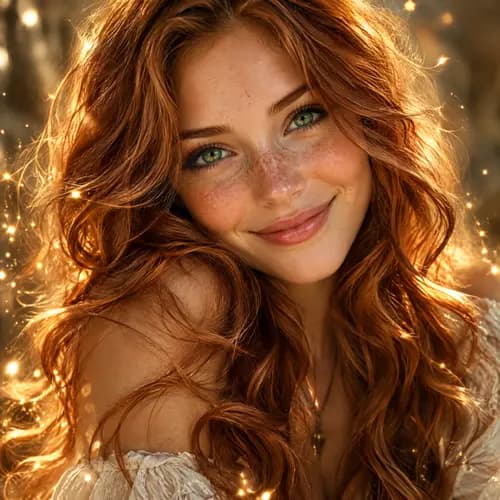
EXAMPLE OUTPUT
An AI image workflow can begin with a written description, an existing image or a small set of references. Decide whether you want a new concept or a controlled change to a source before selecting a model. The same reference can serve different roles, so explain its purpose.
Create a new subject or composition from a brief. Specify the final format, visual hierarchy and lighting before asking for decorative detail.
Supply a source and describe what changes. Compare the entire result with the original, including parts you wanted to preserve.
Use references to communicate appearance or style. Keep the set coherent and inspect the output instead of assuming the files lock every detail.
Existing Most AI work with the actual model identified. Original source prompts are preserved and may be in Russian. Audio samples may contain Russian speech or lyrics; they are not presented as English-language generations.
Open selects the model in the studio. Review its actual name and available inputs before starting. An overview link is provided only where the corresponding English page is ready.
Generate and edit images with GPT Image 2.5 Flare and Sunburst in Most AI. Use reference images, inspect text and compare the available settings.
Generate images and edit photographs with Nano Banana Pro in Most AI. Learn how to prepare references and review important details.
Generate images and edit photos with Seedream 5.0 Pro, Lite and Flash in Most AI. Select the intended variant and review its own settings.
Choose the subject, composition and final placement. For an edit, keep the original file and state what should change and what should remain recognisable.
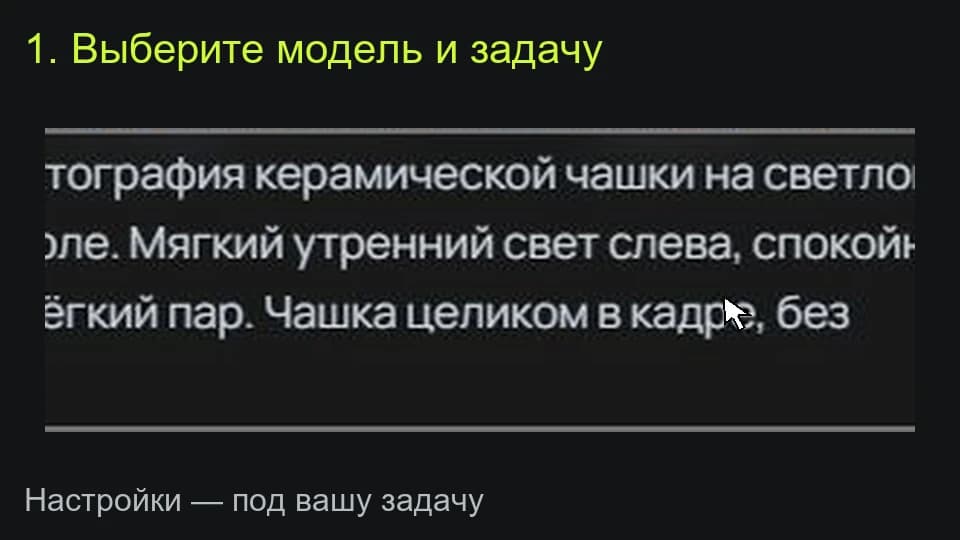
Open a supported image model, add relevant references and choose an available aspect ratio and resolution. Check the current price before submitting.
Open the full image and review lettering, faces, hands and product details. Correct critical typography or layout in an editor before publishing.
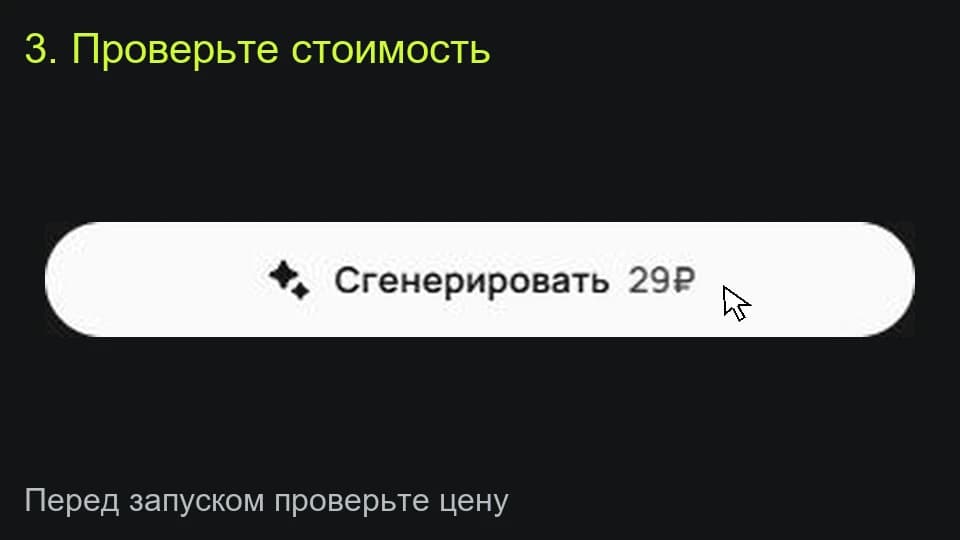
The studio shows the total for the selected settings before a media task starts. Pricing information (Russian) ↗
The useful choice depends on your source, edit and output needs. Compare a shared brief using compatible settings, then inspect the details that matter for your project.
It can produce concepts and useful visual assets, but check product shape, claims and every letter. Add exact typography and mandatory information separately when needed.
Select the model and settings in the studio to see the current price before submitting a media task. Different versions, output quality, duration or text length can change the total. Check your account for any available free quota; this page does not promise unlimited or free access.
An example is a starting point. Reference-led work also depends on the source files, settings and model version. Add your own permitted inputs and adapt the brief to them. Neither an original prompt nor a translated explanation guarantees an identical output.