Background changes
Describe the new environment and lighting. Check subject edges, shadows and reflections in the output.
MOST AI · AI photo editing
Keep what matters.
Change the setting.
Edit a photograph or build a reference-led image with supported models in Most AI. Describe the intended change and inspect what remains.
Review settings and cost before starting
 Keep the productChange the setting
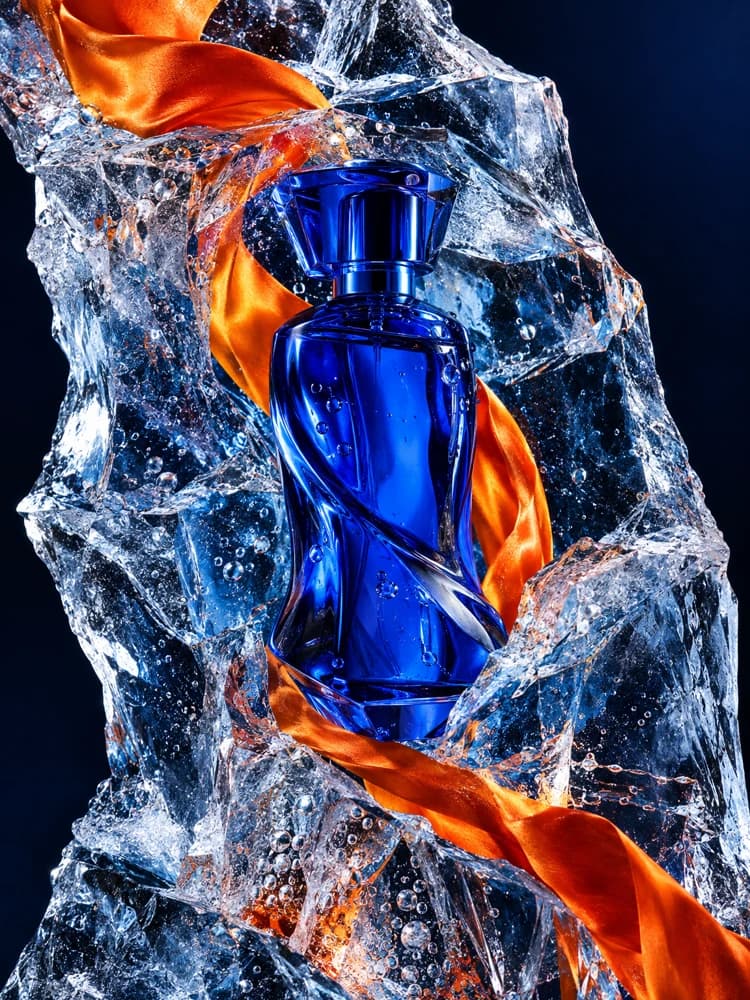
“Replace the background with a bright studio. Keep the bottle shape, colour and placement.”
An edit brief illustrated with a Most AI image. The edit itself is submitted in the studio; this is not a generated after-image.
Image-to-image editing begins with a source and an instruction. A useful request separates the change from the features that should remain recognisable: the product, face, pose, camera angle or composition. Keep the original so that preservation can be checked, not assumed.
Describe the new environment and lighting. Check subject edges, shadows and reflections in the output.
Ask for one change to colour, styling or a detail. Inspect the rest of the image for unintended changes.
Explain which file supplies the subject and which supplies the visual direction. Too many conflicting references can weaken the brief.
Existing Most AI work with the actual model identified. Original source prompts are preserved and may be in Russian. Audio samples may contain Russian speech or lyrics; they are not presented as English-language generations.
Open selects the model in the studio. Review its actual name and available inputs before starting. An overview link is provided only where the corresponding English page is ready.
Generate and edit images with GPT Image 2.5 Flare and Sunburst in Most AI. Use reference images, inspect text and compare the available settings.
Generate images and edit photographs with Nano Banana Pro in Most AI. Learn how to prepare references and review important details.
Generate images and edit photos with Seedream 5.0 Pro, Lite and Flash in Most AI. Select the intended variant and review its own settings.
Choose the subject, composition and final placement. For an edit, keep the original file and state what should change and what should remain recognisable.
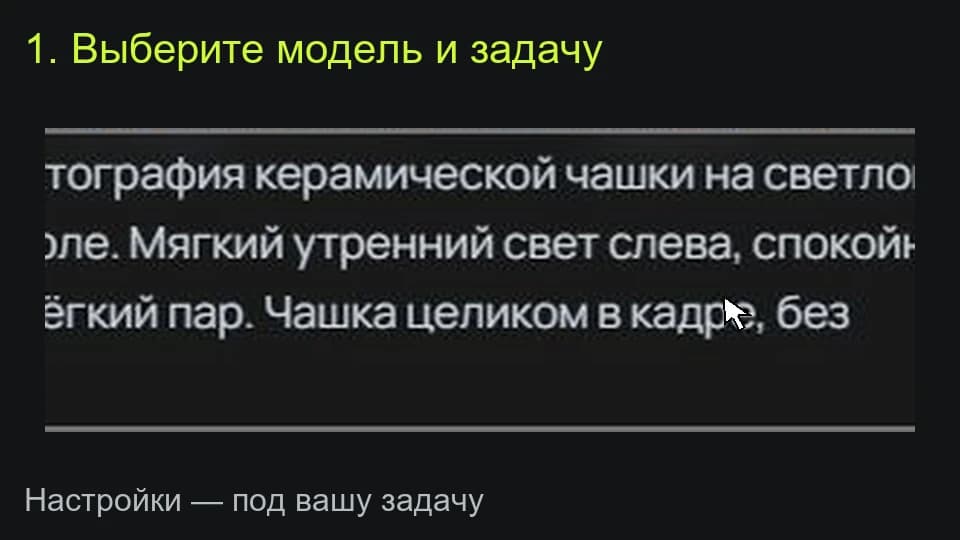
Open a supported image model, add relevant references and choose an available aspect ratio and resolution. Check the current price before submitting.
Open the full image and review lettering, faces, hands and product details. Correct critical typography or layout in an editor before publishing.
The studio shows the total for the selected settings before a media task starts. Pricing information (Russian) ↗
Not necessarily. Generative editing can alter areas you did not intend to change. Compare the full image and use a conventional editor for a strictly isolated correction.
Use a clear image you are permitted to upload. Keep key details visible and avoid relying on a heavily cropped or blurred source to establish exact appearance.
Select the model and settings in the studio to see the current price before submitting a media task. Different versions, output quality, duration or text length can change the total. Check your account for any available free quota; this page does not promise unlimited or free access.
An example is a starting point. Reference-led work also depends on the source files, settings and model version. Add your own permitted inputs and adapt the brief to them. Neither an original prompt nor a translated explanation guarantees an identical output.