A new scene
Use text when the setting or subject does not need to match an existing photograph. Specify a clear visual hierarchy instead of a long list of unrelated details.
MOST AI · Text to video
Describe the scene.
See it move.
Turn a written shot description into AI video. Prepare the subject, action and camera instructions, then choose a supported model in Most AI.
Review settings and cost before starting
Original handcrafted stop-motion-style fantasy film. A graceful long dragon constructed from folded ivory paper and copper foil flies slowly over a miniature midnight city of paper houses and glowing amber lanterns. The dragon coils gently toward the camera as the camera cranes upward; layered paper rooftops create parallax, lanterns sway. Rich tactile paper fibers, indigo shadows, warm gold light, charming artisan world, elegant readable composition. No existing characters, no lettering or logos, continuous five second shot.
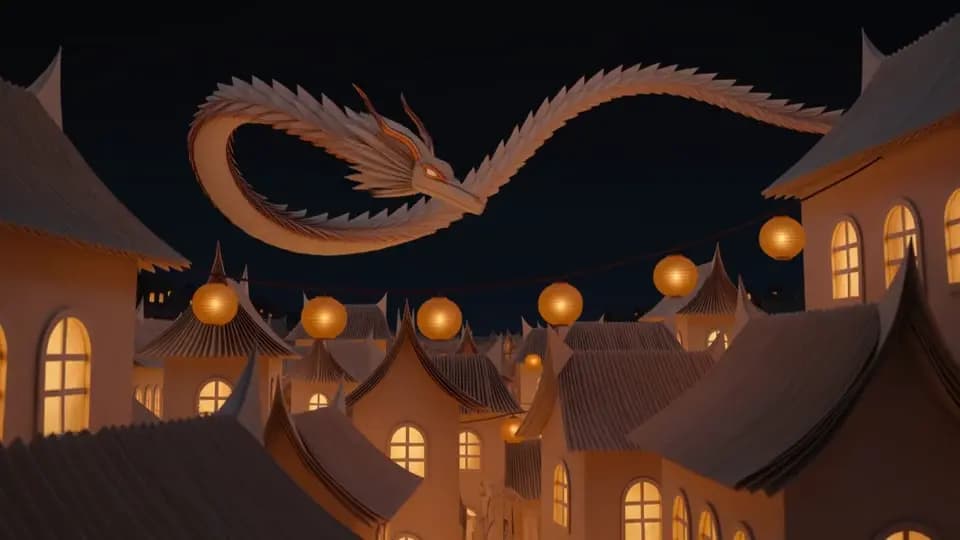
Text-to-video starts with a written description rather than a required source photograph. A practical brief names the subject and setting, describes one action over time and adds a camera instruction only when it serves the shot.
Use text when the setting or subject does not need to match an existing photograph. Specify a clear visual hierarchy instead of a long list of unrelated details.
Describe a product setting and one reveal or movement. Use real references or conventional finishing when exact product appearance and lettering are required.
Give an illustrated subject a readable action. Break a multi-scene idea into separate shots so that each can be reviewed and edited.
Existing Most AI work with the actual model identified. Original source prompts are preserved and may be in Russian. Audio samples may contain Russian speech or lyrics; they are not presented as English-language generations.
Open selects the model in the studio. Review its actual name and available inputs before starting. An overview link is provided only where the corresponding English page is ready.
Create AI video in Kling 4.0 from a scene description or supported visual references. Explore Most AI examples, plan a shot and check settings and cost in the studio.
Make AI video from text or images with Wan 3.0 in Most AI. Explore examples, prepare references and review the whole clip before using it.
Create video from text, images and supported references with Seedance 2.5. See Most AI examples and learn to separate the roles of your input files.
Decide whether the shot starts from text, a photograph or a video reference. Pick a model that supports that input instead of selecting it only by name.
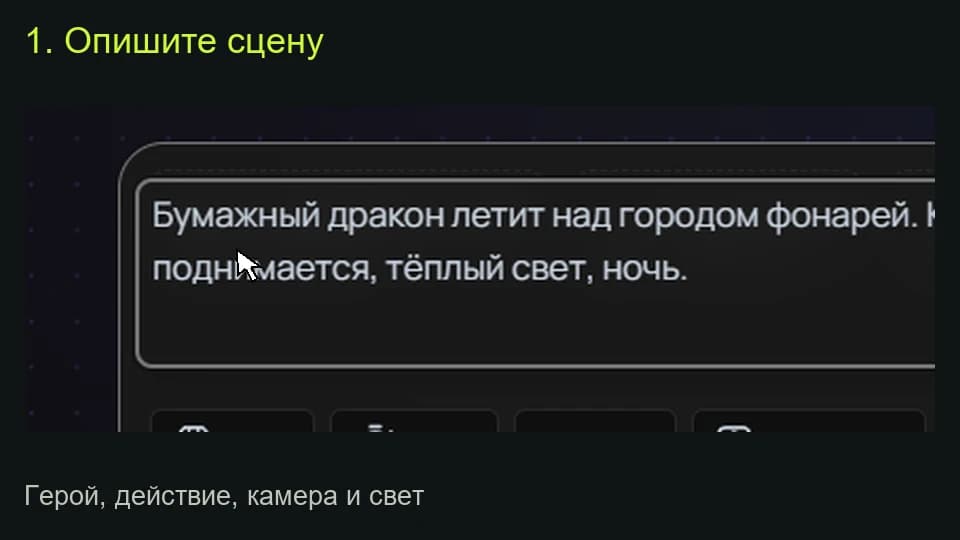
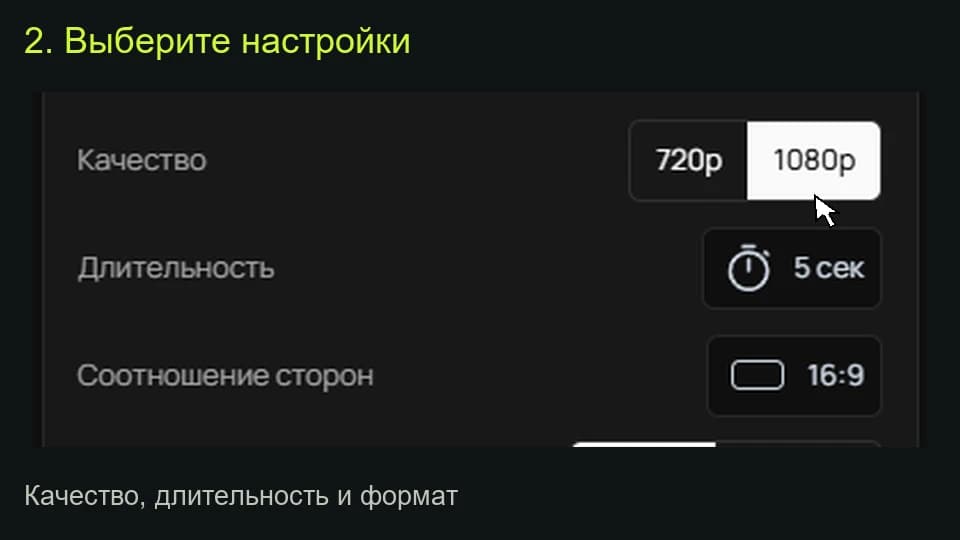
Specify one subject, one action and the intended framing. Explain the role of each reference, then check output settings and the displayed cost.
Watch the complete clip, including the middle and final frames. Check sound where relevant. Assemble accepted shots, captions and exact titles in an editor.
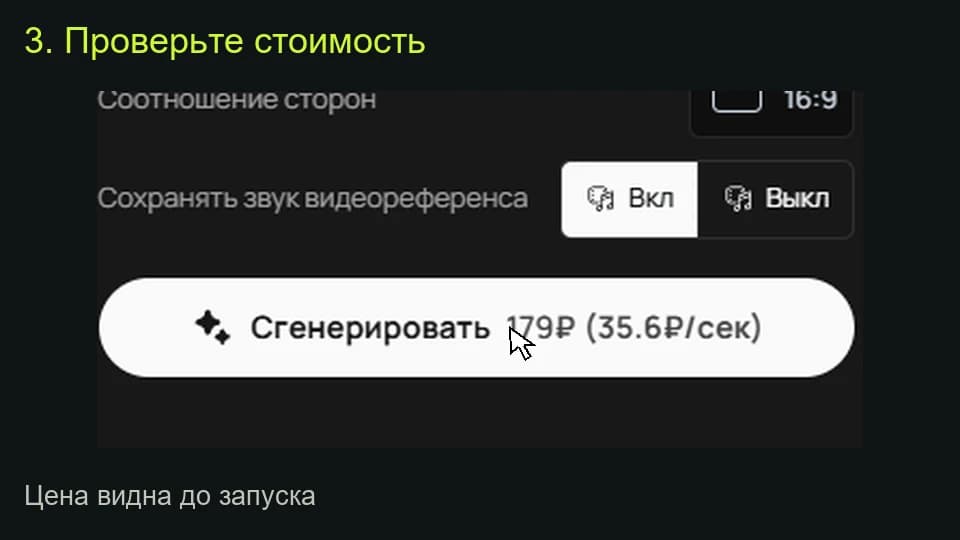
The studio shows the total for the selected settings before a media task starts. Pricing information (Russian) ↗
State who or what is present, what happens, where it happens and how the camera behaves. Specify light, style and sound when relevant. Remove instructions that conflict with the main action.
Not necessarily. More detail can create competing requirements. Begin with a coherent shot, inspect the result and add only the missing information in the next version.
Select the model and settings in the studio to see the current price before submitting a media task. Different versions, output quality, duration or text length can change the total. Check your account for any available free quota; this page does not promise unlimited or free access.
An example is a starting point. Reference-led work also depends on the source files, settings and model version. Add your own permitted inputs and adapt the brief to them. Neither an original prompt nor a translated explanation guarantees an identical output.