A cover or poster concept
Describe the image hierarchy and leave room for text. Finish exact headlines and typography in a design editor.
MOST AI · Text to image
Describe the visual.
Make the first draft.
Turn a written description into an image with Most AI. Define the subject, framing, style and light, then inspect the generated details.
Review settings and cost before starting
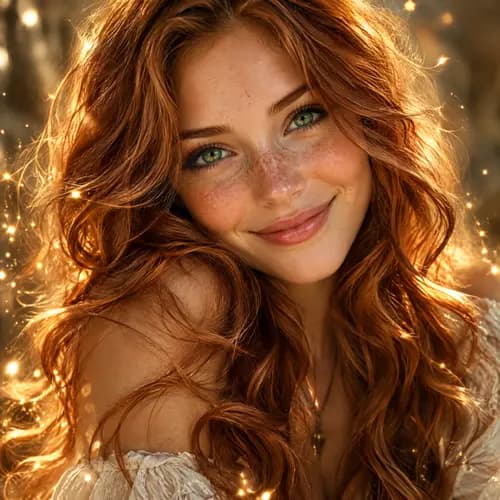
A photorealistic portrait of a fictional adult character with long wavy copper hair and bright green eyes. A warm, sincere smile, soft features and light freckles. Warm golden highlights, delicate sparks in the air, soft natural light, a neutral blurred background and cinematic framing.
English adaptation of the original source prompt. The gallery preserves the original wording.
Text-to-image creates a new visual from a written brief. Name the focal subject and the intended use before adding style words. A poster, product concept and illustrated scene need different composition decisions even when they share a palette.
Describe the image hierarchy and leave room for text. Finish exact headlines and typography in a design editor.
Specify medium, subject and one composition. Use a coherent style description rather than stacking unrelated aesthetics.
Describe the surface, background and lighting. Use real source material for an existing product when exact appearance matters.
Existing Most AI work with the actual model identified. Original source prompts are preserved and may be in Russian. Audio samples may contain Russian speech or lyrics; they are not presented as English-language generations.
Open selects the model in the studio. Review its actual name and available inputs before starting. An overview link is provided only where the corresponding English page is ready.
Generate and edit images with GPT Image 2.5 Flare and Sunburst in Most AI. Use reference images, inspect text and compare the available settings.
Generate images and edit photographs with Nano Banana Pro in Most AI. Learn how to prepare references and review important details.
Generate images and edit photos with Seedream 5.0 Pro, Lite and Flash in Most AI. Select the intended variant and review its own settings.
Choose the subject, composition and final placement. For an edit, keep the original file and state what should change and what should remain recognisable.
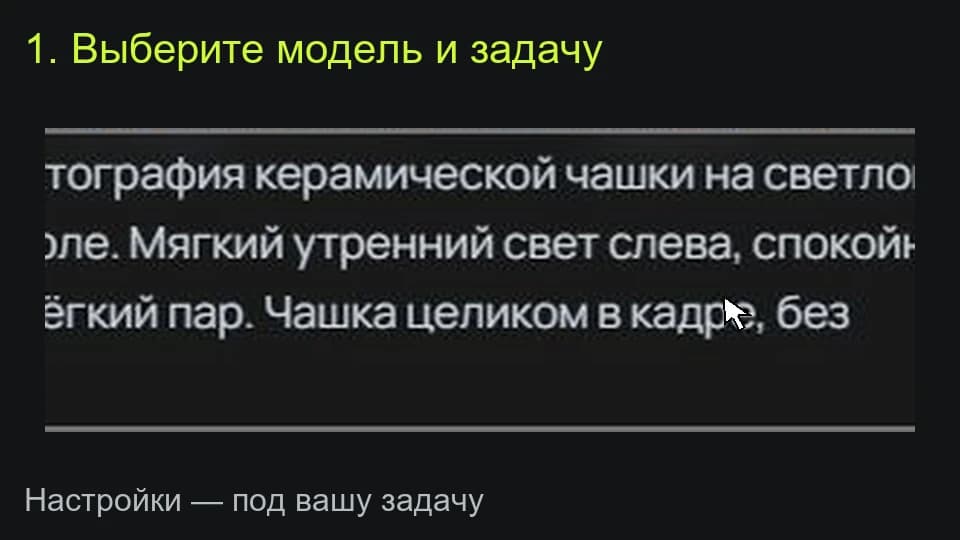
Open a supported image model, add relevant references and choose an available aspect ratio and resolution. Check the current price before submitting.
Open the full image and review lettering, faces, hands and product details. Correct critical typography or layout in an editor before publishing.
The studio shows the total for the selected settings before a media task starts. Pricing information (Russian) ↗
Include the subject, composition, setting, light and intended format. Add details that have a visible role. A longer prompt is not automatically a clearer brief.
A generator interprets the brief rather than executing a design file. Say what matters, inspect the output and make exact corrections in an editor when necessary.
Select the model and settings in the studio to see the current price before submitting a media task. Different versions, output quality, duration or text length can change the total. Check your account for any available free quota; this page does not promise unlimited or free access.
An example is a starting point. Reference-led work also depends on the source files, settings and model version. Add your own permitted inputs and adapt the brief to them. Neither an original prompt nor a translated explanation guarantees an identical output.