Product animation
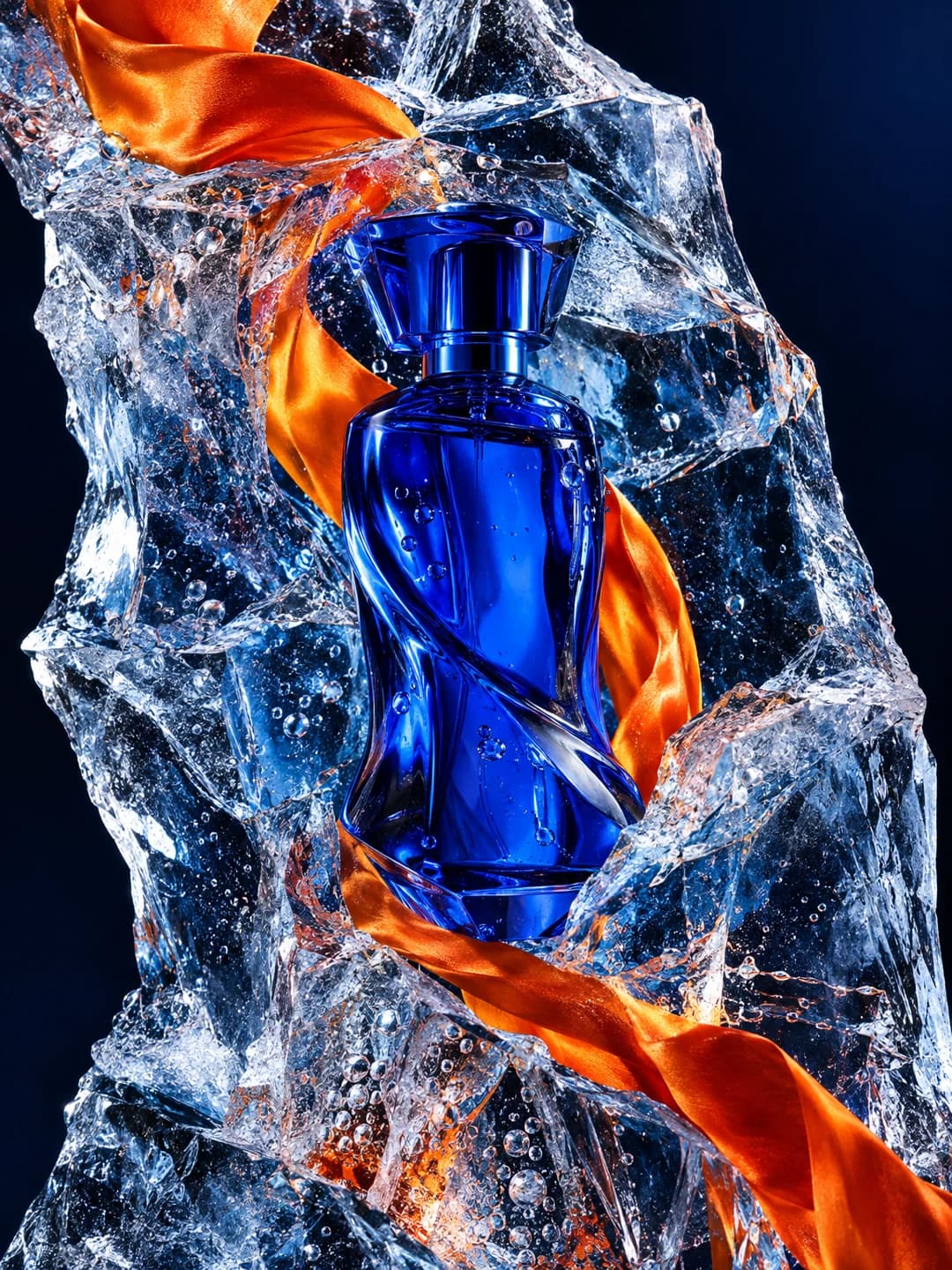
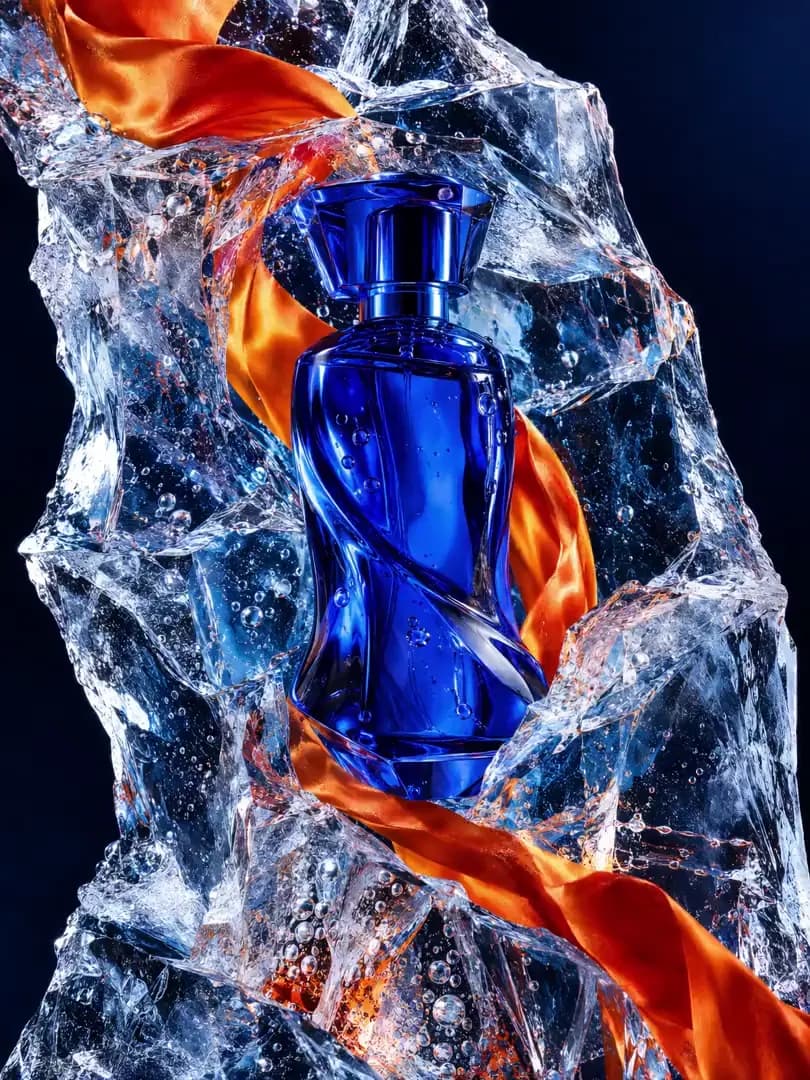
Start with a clear product image. Ask for a modest camera move or environmental effect and inspect labels, reflections and shape through the clip.
MOST AI · Image to video
A photograph has a story.
Give it movement.
Animate a photograph or illustration with a supported image-to-video model. Prepare a clear source and describe the motion you want in Most AI.
Review settings and cost before starting
Image-to-video uses a source image to establish a scene, then generates moving frames. It works best as a task you can evaluate: a restrained expression, a simple object movement or a camera change compatible with what is visible in the image.
Start with a clear product image. Ask for a modest camera move or environmental effect and inspect labels, reflections and shape through the clip.
Use a permitted portrait with a visible face. Keep the requested movement limited and check identity, eyes, mouth and hands rather than assuming they remain unchanged.
Animate one element of an illustration while keeping the composition readable. A large change in viewpoint may require the model to invent unseen areas.
Existing Most AI work with the actual model identified. Original source prompts are preserved and may be in Russian. Audio samples may contain Russian speech or lyrics; they are not presented as English-language generations.
Open selects the model in the studio. Review its actual name and available inputs before starting. An overview link is provided only where the corresponding English page is ready.
Create AI video in Kling 4.0 from a scene description or supported visual references. Explore Most AI examples, plan a shot and check settings and cost in the studio.
Make AI video from text or images with Wan 3.0 in Most AI. Explore examples, prepare references and review the whole clip before using it.
Create video from text, images and supported references with Seedance 2.5. See Most AI examples and learn to separate the roles of your input files.
Use a sharp, uncluttered image with enough room for the intended motion. Match the desired aspect ratio when possible and retain the original for comparison.
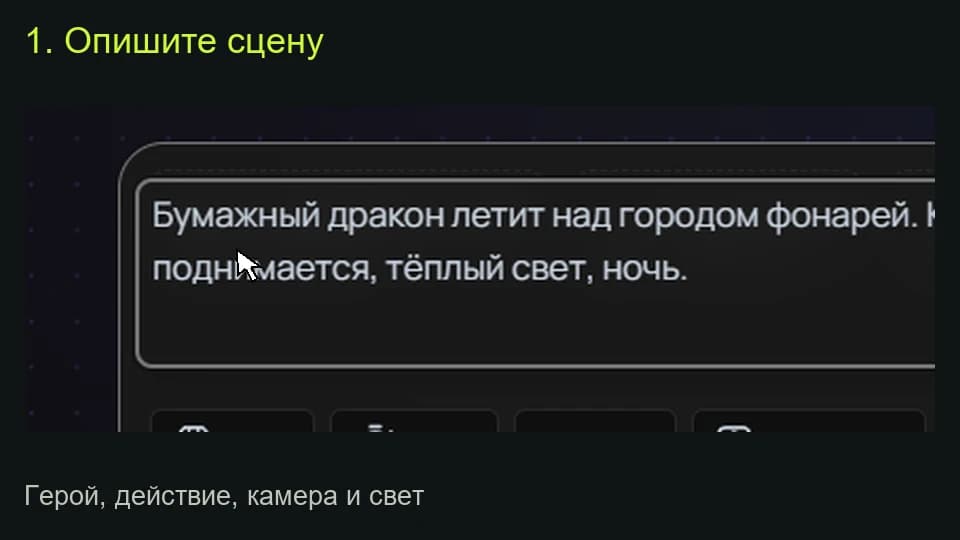
Say what moves, how far and at what pace. Separate subject movement from camera movement. Choose the supported mode, settings and price before submitting.
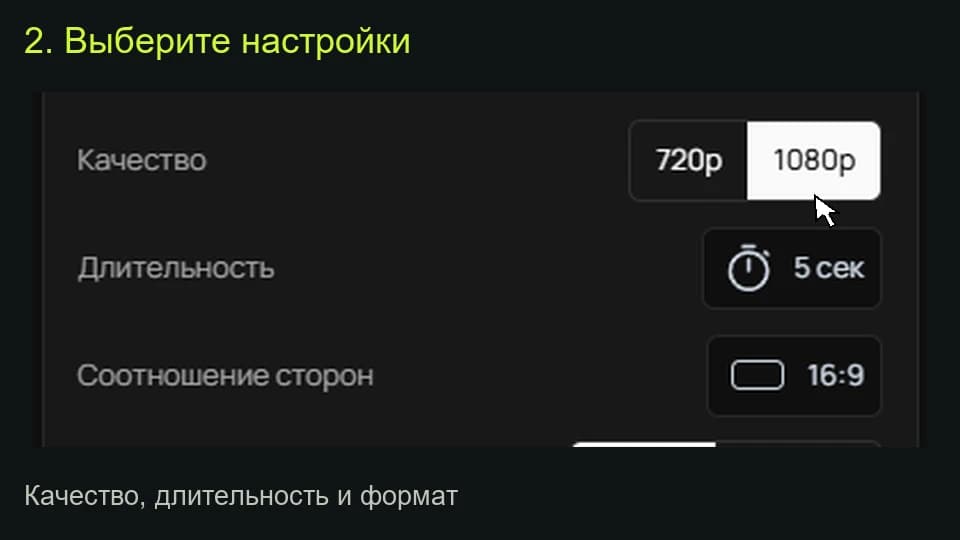
Check the opening image, the middle and the ending. Reject unwanted object deformation or face changes. Keep an accepted short shot rather than forcing an unsuitable source into a larger action.
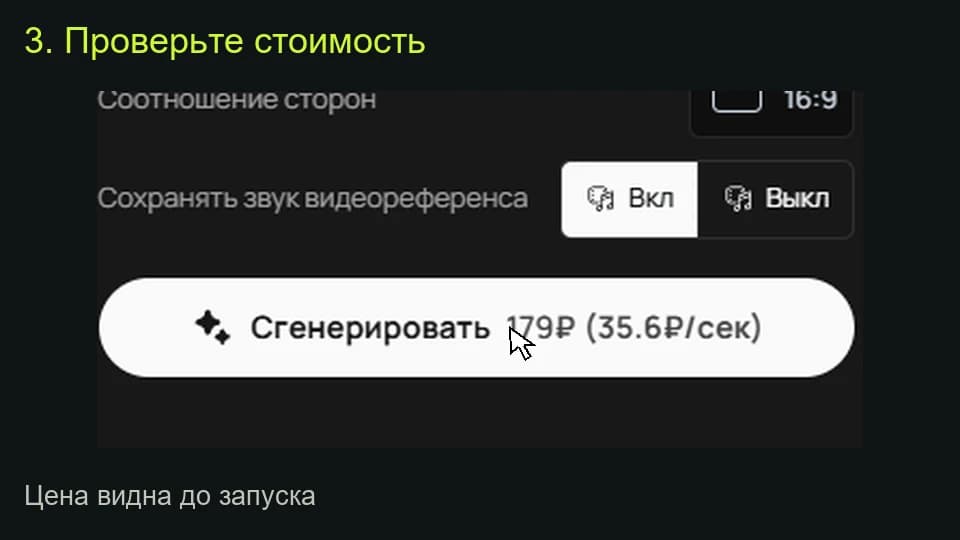
The studio shows the total for the selected settings before a media task starts. Pricing information (Russian) ↗
The model generates new frames rather than moving fixed pixels. Occluded or unseen areas must be inferred. Reduce the movement, improve the source or try a more compatible composition.
No. Ordinary image-to-video can generate motion from a description. Motion Control is a separate reference-led task for applying movement to a character.
Select the model and settings in the studio to see the current price before submitting a media task. Different versions, output quality, duration or text length can change the total. Check your account for any available free quota; this page does not promise unlimited or free access.
An example is a starting point. Reference-led work also depends on the source files, settings and model version. Add your own permitted inputs and adapt the brief to them. Neither an original prompt nor a translated explanation guarantees an identical output.