Example prompt
A paper whale floats above a river. The camera follows it. Water splashes in a light breeze.
Text to video
Describe the subject, action and camera movement. Specify the sounds you want and when they should occur.

SAND AI
Describe the action and sound, or add frames and references. Sand AI’s MAGI-2 generates the scene and soundtrack together.
Check settings and cost before starting
A paper whale floats above a river. The camera follows it. Water splashes in a light breeze.
Describe the subject, action and camera movement. Specify the sounds you want and when they should occur.
Add images, video or audio. Tell MAGI-2 which file supplies the character, the movement or the sound reference.


Select Frames, add a start and an end image, then describe the transition between them.
Turn on sound and listen to how the soundtrack changes from shot to shot.
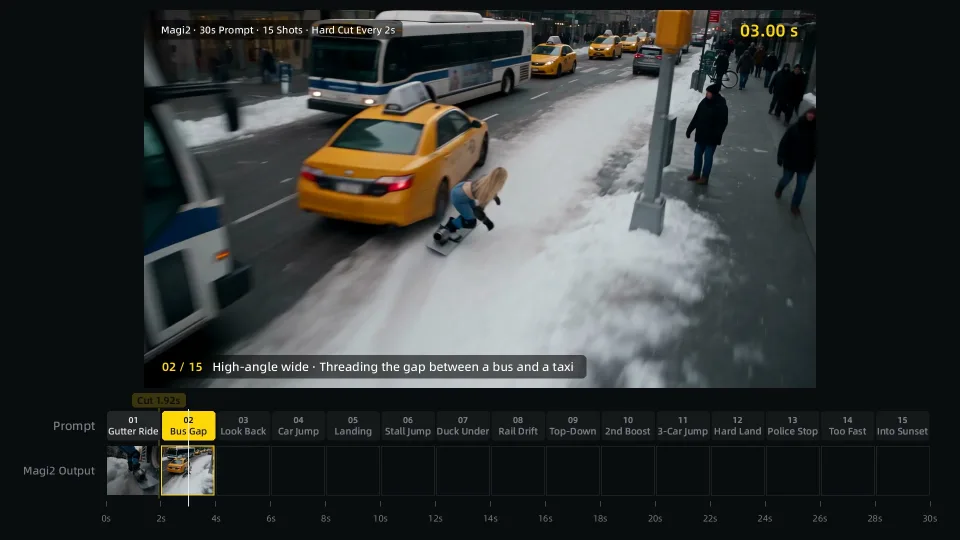
The walkthroughs illustrate the Most AI studio controls in English.
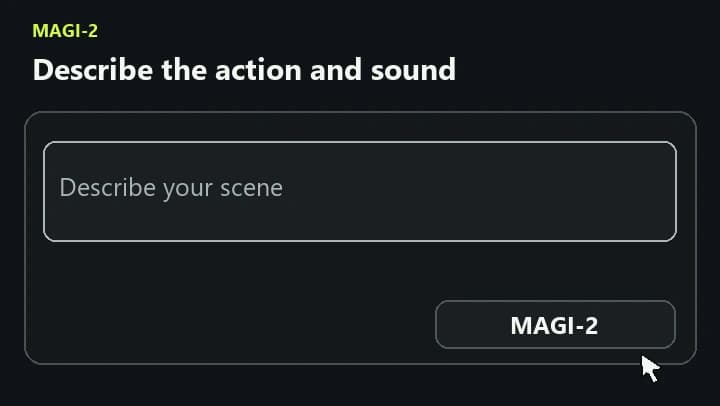
Select MAGI-2 and write what happens on screen and what the viewer should hear.
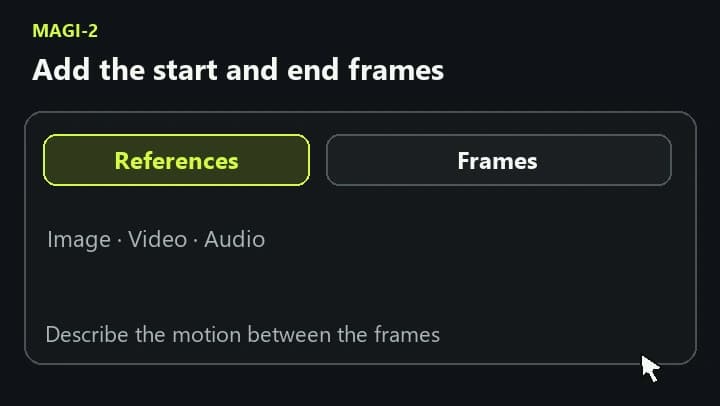
Use Frames for start and end images, or References to guide the scene with images, video or audio.
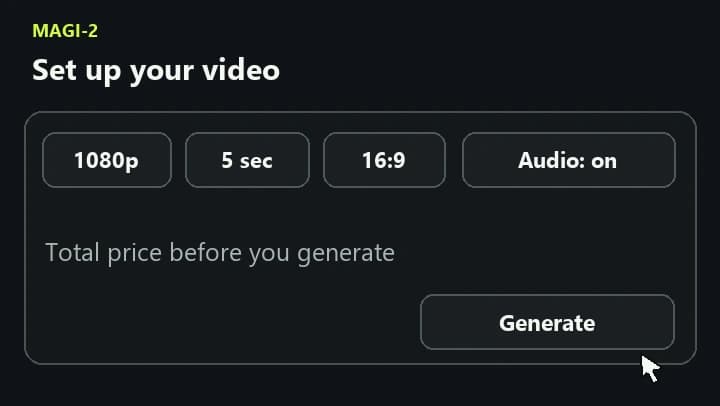
Set the duration, aspect ratio and audio. Review the total in the studio before generating.
Prices in Most AI for a 5-second clip at 1080p, 16:9, with audio on and a text prompt only.
MAGI-2 costs less at these settings. The studio shows the current total before you generate.
Explore Seedance 2.5Yes. Leave the model in References mode and describe the scene in a text prompt.
Switch to Frames, attach a start and end image, and describe the motion between them.
You can add up to 10 attachments in References mode in Most AI. For example, use a character image, a video for motion and an audio clip.
Yes. Turn the Audio setting off in the MAGI-2 studio form.
The studio opens the current MAGI-2. MAGI-1 and MAGI-2 Preview are separate, earlier releases from Sand AI.